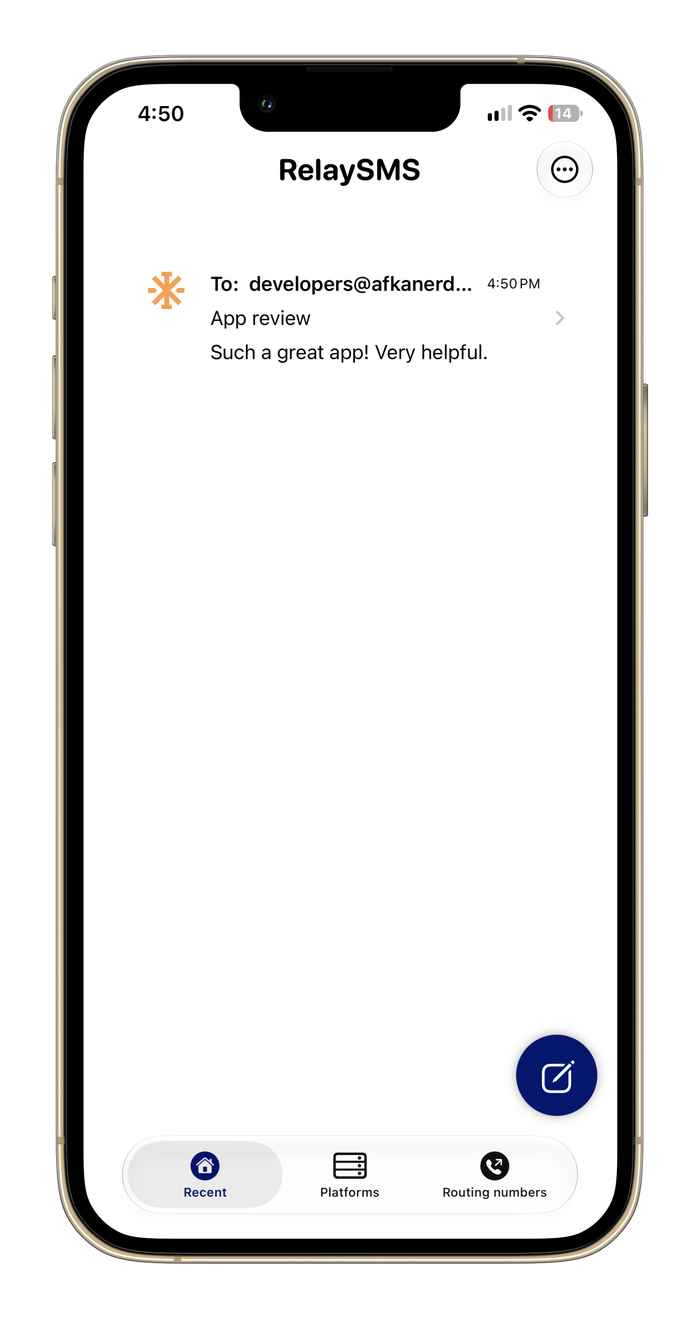
Step 5 - Sending a message
Ways to send
Tap the compose button on the home screen. The Send with... menu opens. You can send in two ways.
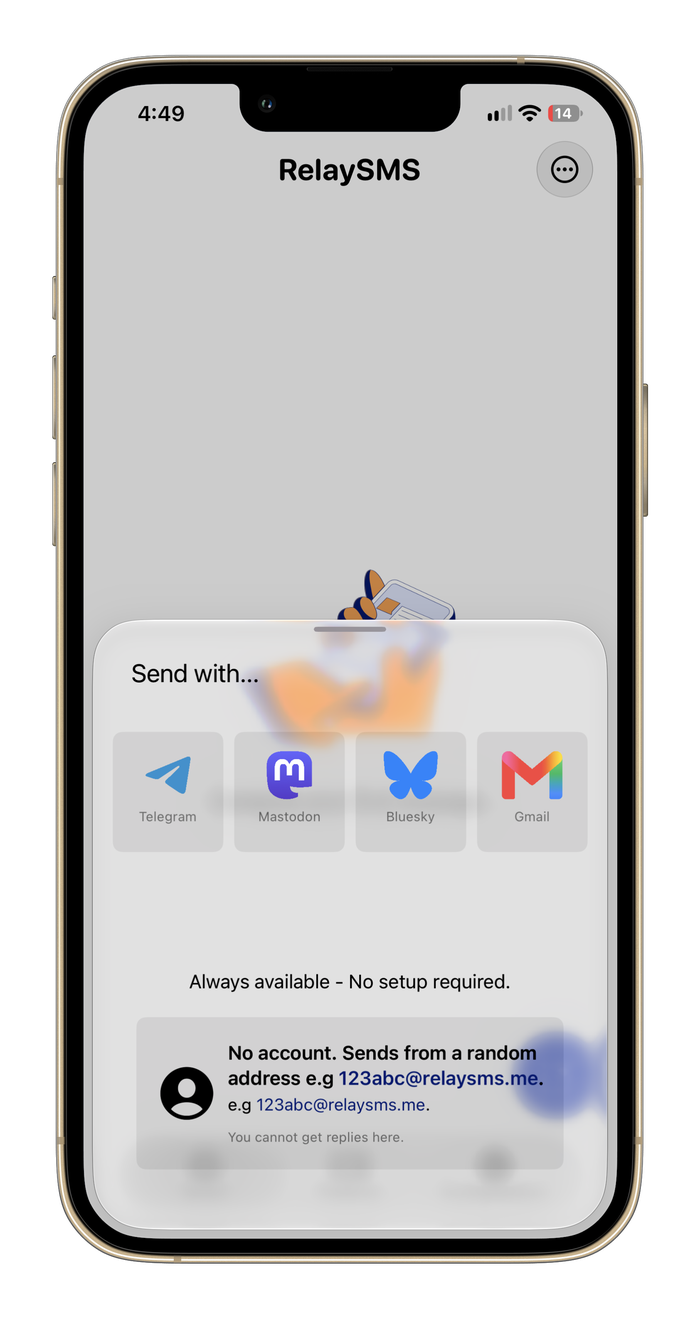
Way 1 - Send quickly with R-Mail (no setup needed)
Best for: when you are caught in a shutdown and need to send an email quickly.
R-Mail is always available and needs no account. It sends from a random address, for example 123abc@relaysms.me. You cannot get replies to this address.
- Tap the compose button on the home screen.
- Tap the option at the bottom of the Send with... menu (No account. Sends from a random address).
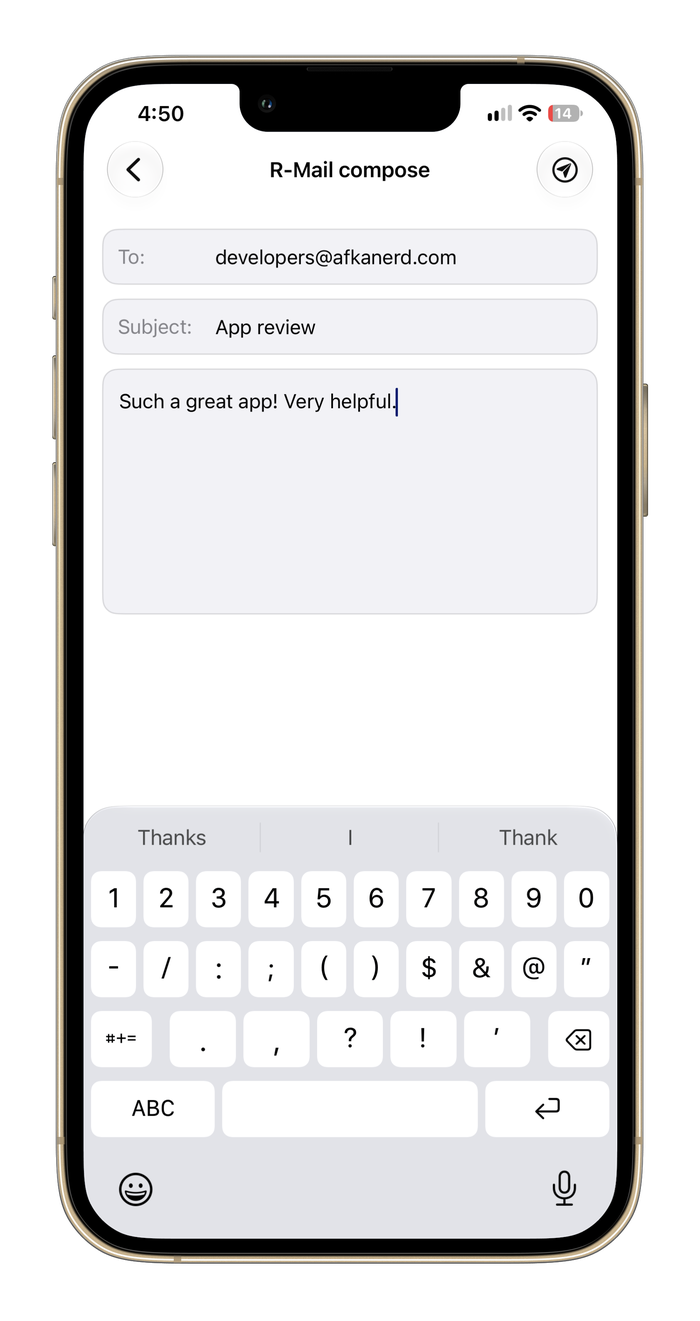
- Type the receiver's email address, a subject and your message.
- Tap the send icon at the top.
- Choose a routing number and send. See Choose a routing number and send.
Way 2 - Send with saved platforms
Best for: when you want to send from your own Gmail, Bluesky, Mastodon or Telegram account. You need to save the platform first.
- Tap the compose button on the home screen.
- Choose your platform from the Send with... menu.
- If you have more than one account saved, tap Select an account and choose one.
- Type your message.
- Tap the send icon at the top.
- Choose a routing number and send.
Choose a routing number and send
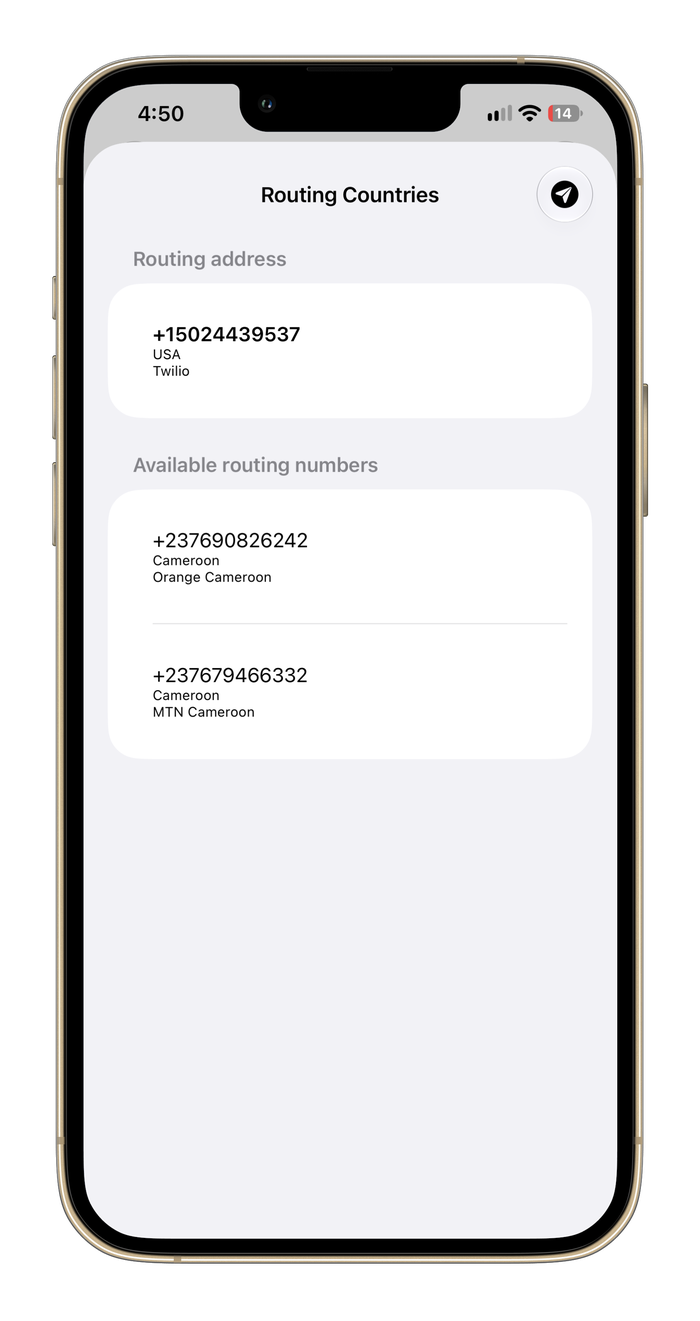
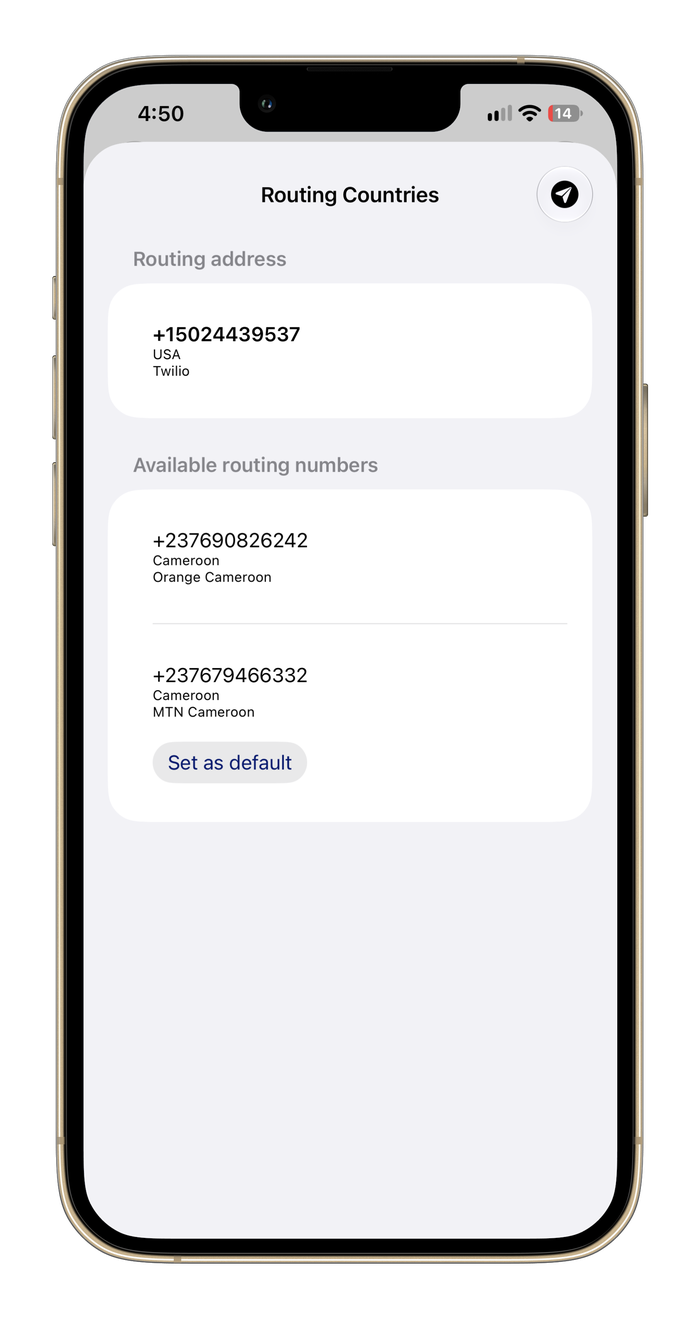
After you tap send, the Routing Countries screen opens.
- Check the number under Routing address. This is the number your message will be sent to.
- To use a different number, tap it under Available routing numbers, then tap Set as default.
- Tap the send icon.
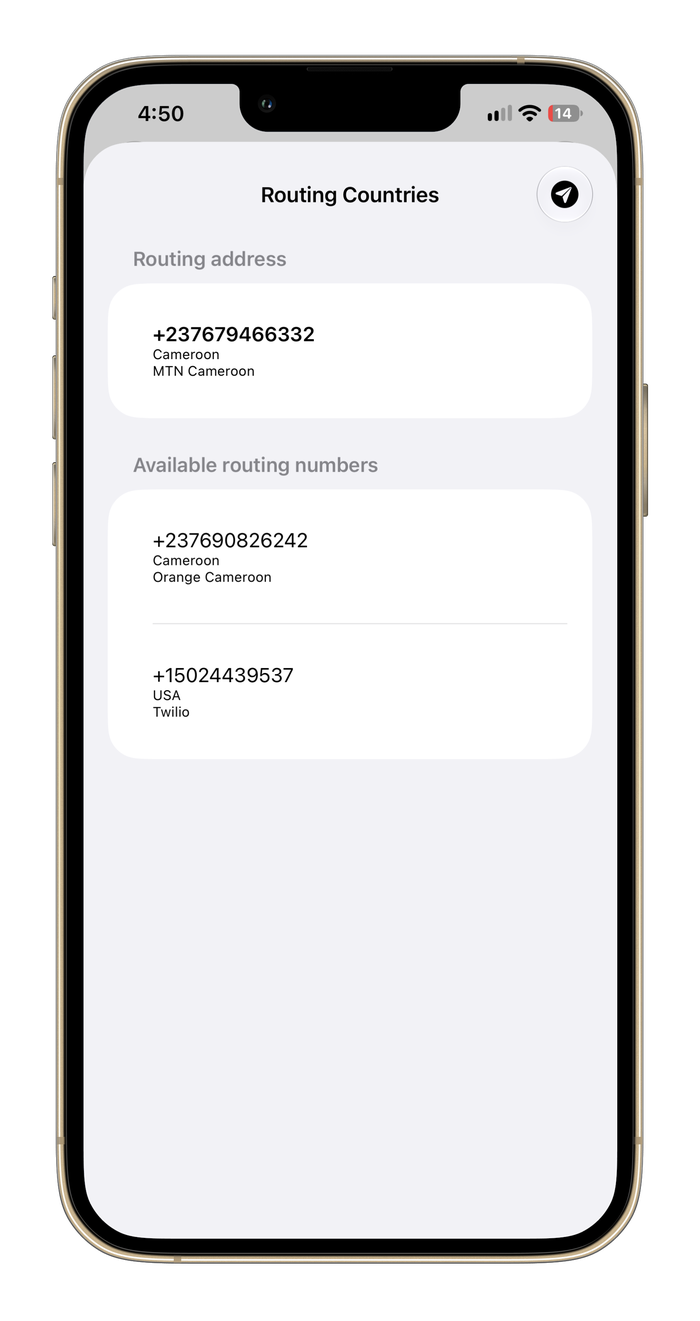
- iOS opens a New Message screen with your encrypted message. Tap the send arrow.
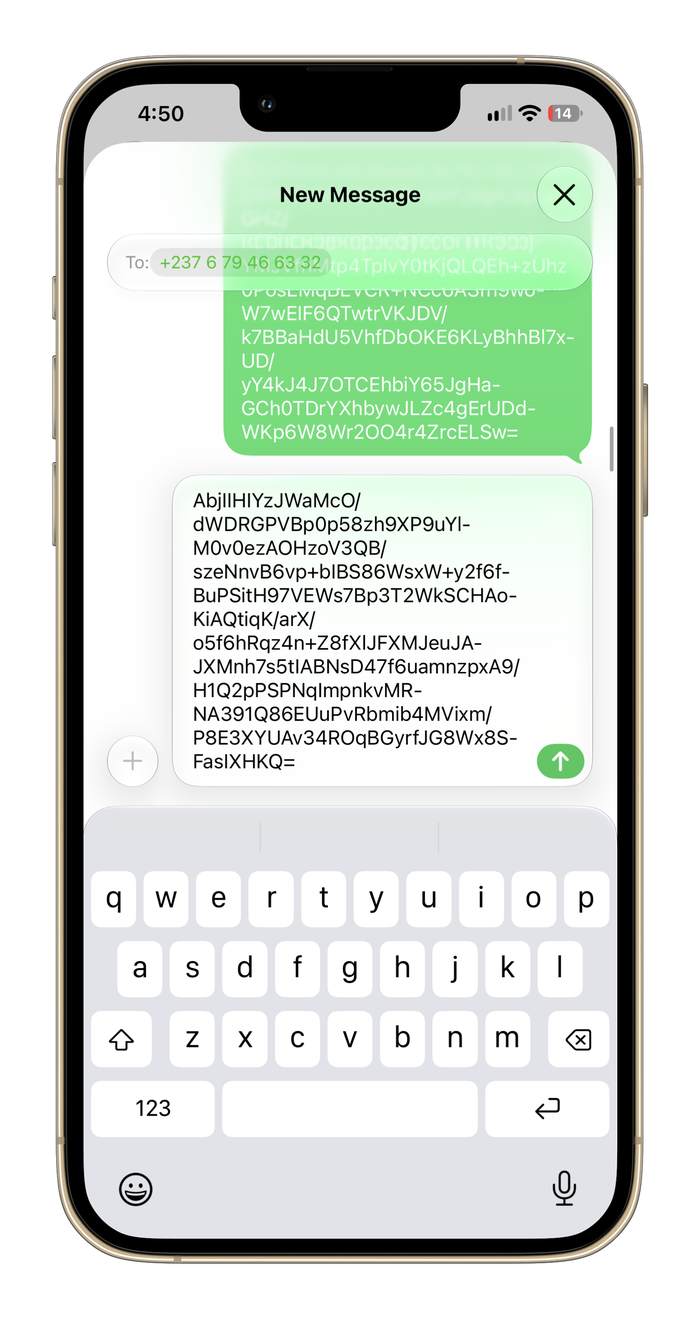
Do not panic if your SMS looks like random letters and numbers. That is expected encryption.
Your message now appears on the Recent tab.